
The story · Getting started · Design history · Saved prompts
Contains Portal has two visual jobs: a family dashboard readable across a room, and a Discover screen that invites children to explore a complete daily learning piece. ImageGen helped compare directions before committing to the layouts. The selected concepts then became native Android components, with separate generated illustrations.
This account follows the saved October 20, 2026 prompt sets, original generated images, the owner's explicit selections, and screen-review feedback. The final hardware captures are from October 21. Mockups, reconstructed diagrams, and actual device screenshots are labeled separately. The saved generated concepts are 1672×941 pixels; prompts requested a 1920×1080-style composition. The native landscape captures are 1920×1080.
Want to install it? Use the complete getting-started guide.
The sequence
- Define the widgets and viewing conditions.
- Generate four visual styles around a common eight-slot dashboard.
- Refine the style on hardware, then generate four layout arrangements.
- Choose layout 04 and change its hierarchy with specific feedback.
- Explore three separate learning-screen concepts.
- Choose Pocket Playground, revise its mascot and content scope, and generate reusable art.
- Build native cards, labels, buttons and lesson flows; review actual screenshots.
- Separate approved content and assets from APK code so everyday changes can arrive over Wi-Fi.
There were two different concepts numbered 04. Round one's 04 was Dusk glass. The later selected family layout was round two's 04 · Day planner. The numbers belong to their own comparisons.
1. Start with the household jobs
The first request was for two weather locations and the next inbound J train from 28th Street toward Embarcadero. The dashboard grew to include a clock, photos, after-school activities, an alarm and Muse. The owner corrected an early six-slot idea to an eight-slot arrangement.
The saved prompts specified a straight-on 16:9 composition, a fixed widget inventory, generous gutters, and type readable across a room. All cards had to fit, without a device bezel, photographed room or unrelated controls.
The initial family-dashboard mockups did not use original album photographs. Their temperatures, arrivals and scenic images were illustrative, not evidence of live services or an installed dashboard.
2. Round one: compare visual styles
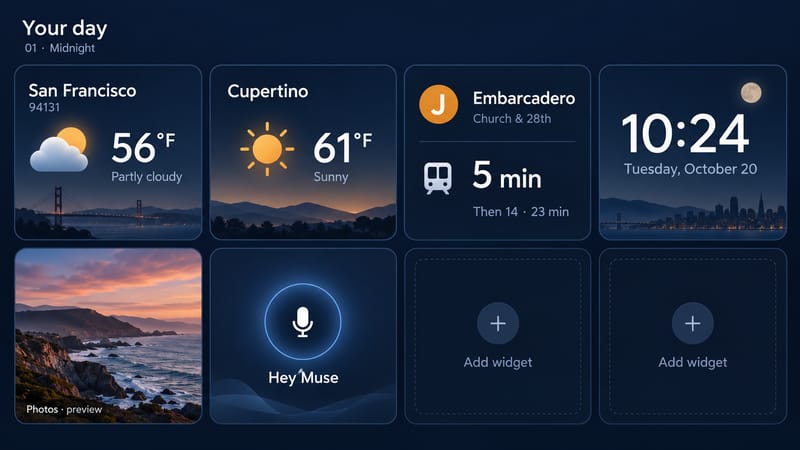
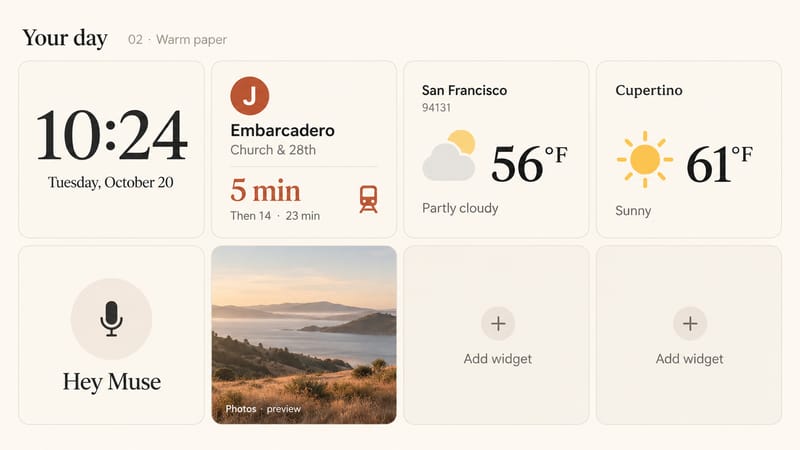
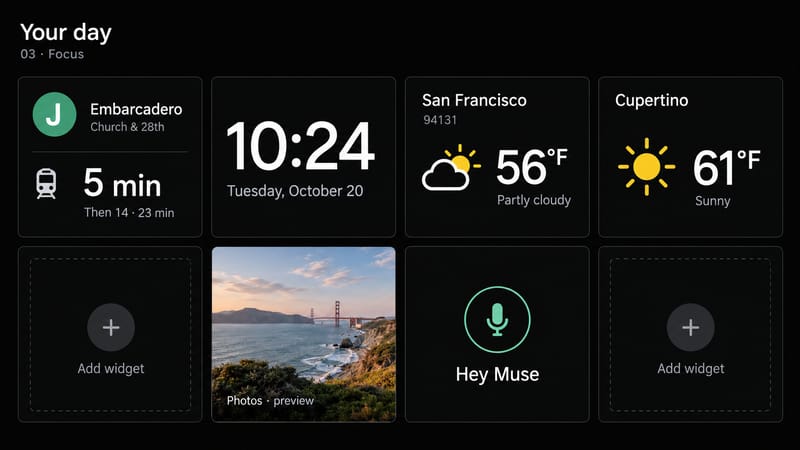
The first four prompts kept the same 4-column × 2-row structure and changed palette, surface treatment, emphasis and order.
- Concept: 01 · Midnight · What the prompt explored: Navy, amber transit accent, rounded cards, weather first
- Concept: 02 · Warm paper · What the prompt explored: Ivory, terracotta, fine borders and a clock-first treatment
- Concept: 03 · Focus · What the prompt explored: Near-black, mint accents, restrained separators and transit first
- Concept: 04 · Dusk glass · What the prompt explored: Plum/navy ambient glass, lavender/peach accents and photos first
01 · Midnight — original ImageGen concept
02 · Warm paper — original ImageGen concept
03 · Focus — original ImageGen concept
04 · Dusk glass — original ImageGen concept
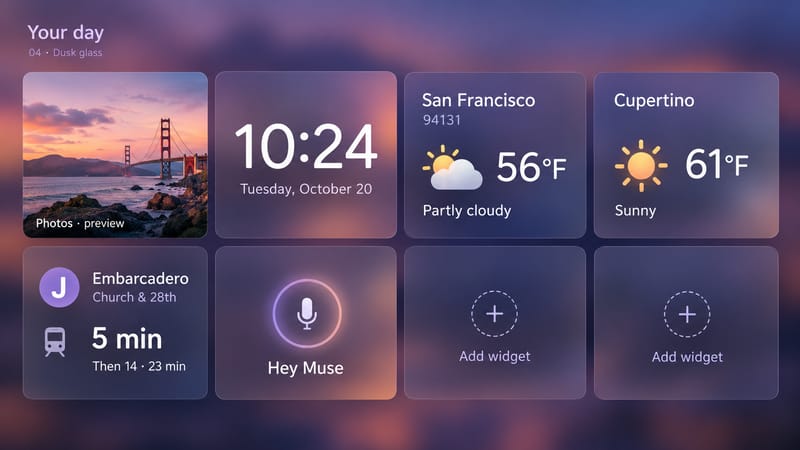
These are alternatives, not four shipped app themes. Two slots were still Add widget placeholders, and Muse was represented by a microphone rather than its eventual pixel character.
The owner subsequently requested liquid glass, weather highs/lows and hourly curves, activities, an alarm, and the Jolly pixel character. After seeing that implementation, the owner said the glass treatment did not work with the chosen background. The next direction used charcoal, softer highlights, and no purple diagonals.
That was a correction from a real screen, not a conclusion that every glass surface or every other first-round concept had been rejected.
3. Round two: hold the style, compare layouts
With the inventory and charcoal treatment more settled, the next ImageGen round explored hierarchy.
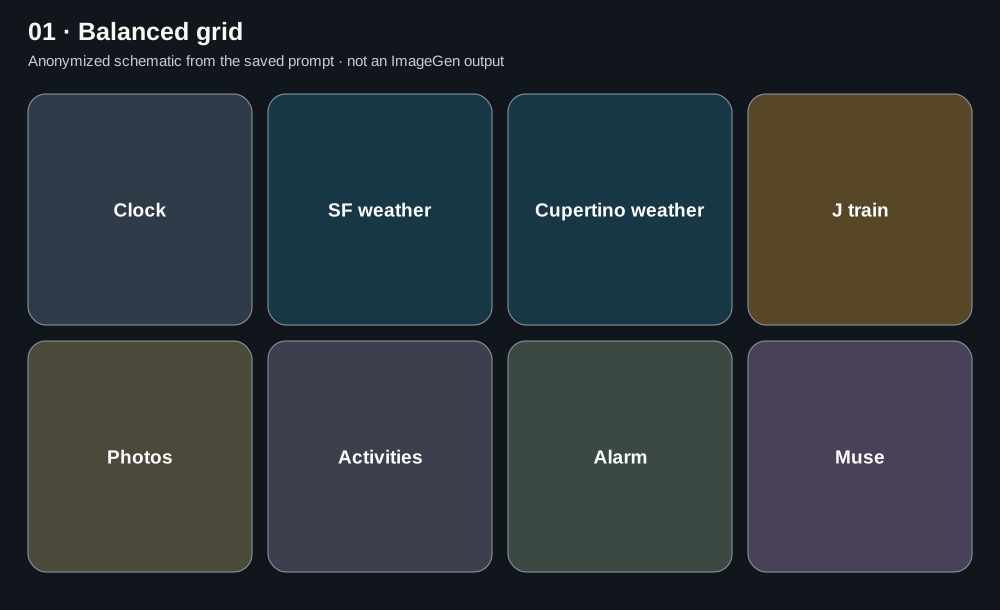
- Concept: 01 · Balanced grid · Layout described by its saved prompt: Eight equal cards; clock, both weather cards and train on top
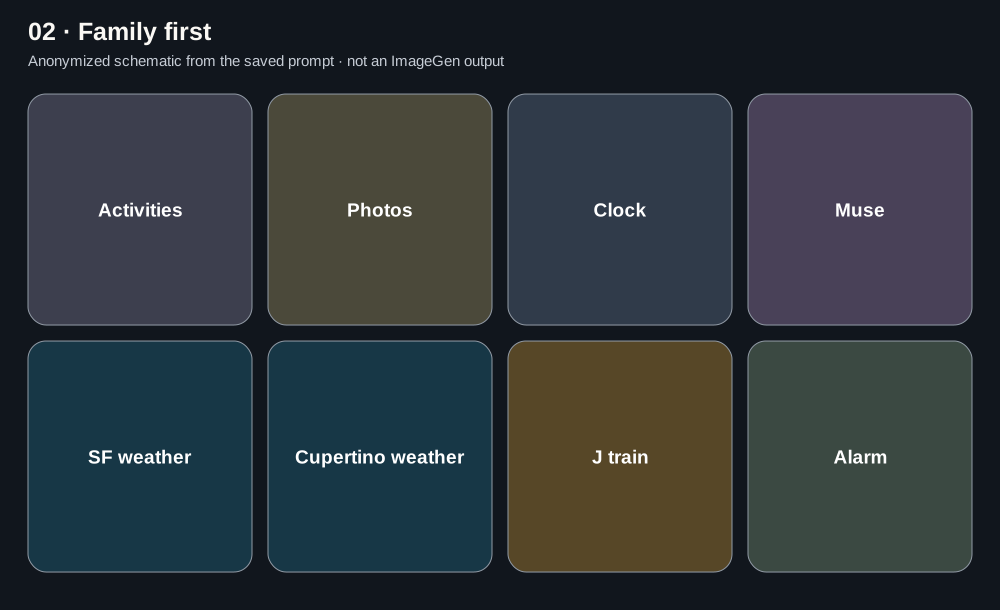
- Concept: 02 · Family first · Layout described by its saved prompt: Activities, photo, clock and Muse on top; weather, train and alarm below
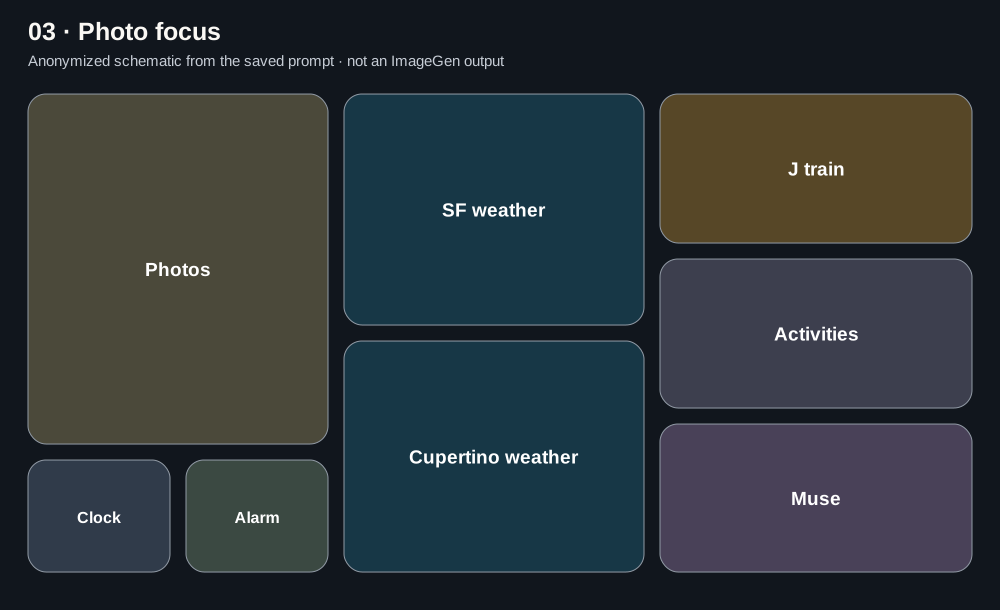
- Concept: 03 · Photo focus · Layout described by its saved prompt: Large photo area, compact clock/alarm, stacked weather and a right-hand information column
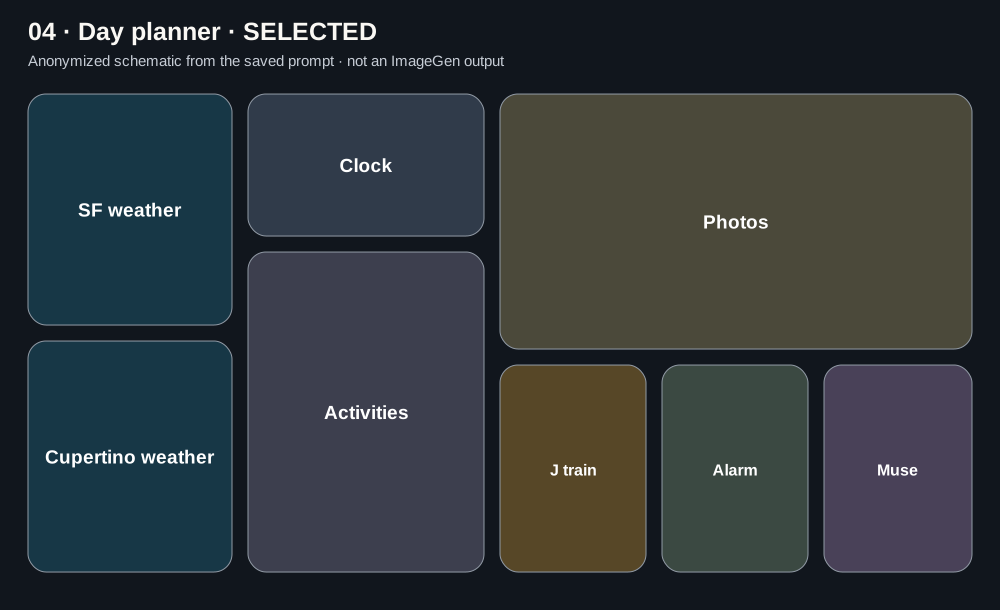
- Concept: 04 · Day planner · Layout described by its saved prompt: Stacked weather at left, clock above a tall activity card, a wide photo and smaller train/alarm/Muse cards
The following are anonymized layout schematics reconstructed from the saved prompts. They are not the original ImageGen bitmaps. The original second-round images contain children's first names and are retained in the local illustrated edition.
The explicit choice, then the refinement
The owner selected the second round's 04, then requested an inspirational quote instead of a Day planner title, vertical photos, smaller stacked Muse/alarm areas, and a much larger arrival time under a simple J train label. Later refinements added category icons and portrait-only photo rotation.
The clock and alarm were subsequently combined to make room for Sonos. The final eight areas are two weather cards, clock/alarm, dated activities, portrait photos, J train, Sonos and Muse. Quotes cycle on touch and focus on perseverance, difficult things, kindness and respect.
The final layout is not a literal copy of the chosen image. The image established a direction; specific requests then changed sizes, copy, orientation and controls.
Finished Your day layout
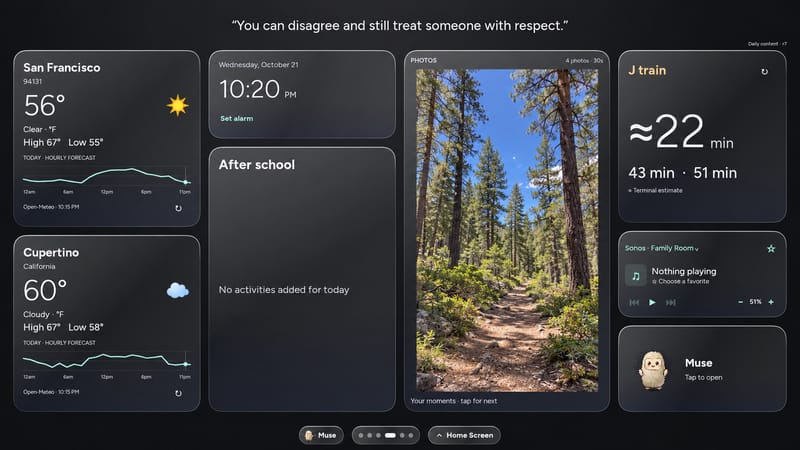
This is an ImageGen privacy edit based on an actual device capture, with the personal photo replaced by a generated woodland image. It is not a pixel-identical raw screenshot; the original stays local.
The weather cards now stack both cities at left and include current conditions, daily highs/lows, an hourly temperature curve, and source/freshness information. The selected concept's wide photo became a full-height portrait column. The native album selects portrait images, applies camera orientation, and uses fit rather than crop. The captured setup rotates images every 30 seconds and supports tap for next. Clock/alarm and activities occupy the next column; the enlarged J train card, Sonos and manual Muse access occupy the right.
4. A separate brief for Discover
The next request was for educational content for ages 9–12. An early screen had an Evening label. The owner chose a screen reached by swiping, available at any time; it became Discover.
The visual request emphasized playfulness, different shapes and sizes, and the tactile clarity of a polished game interface. The prompts referenced Nintendo as art direction while explicitly requesting original characters and no franchise characters or logos.
The initial learning inventory had eight widgets: fact, English, Spanish, puzzle, science, kindness, creative challenge and family conversation. This is separate from the family dashboard's eight areas.
01 · Pocket Playground — original ImageGen concept
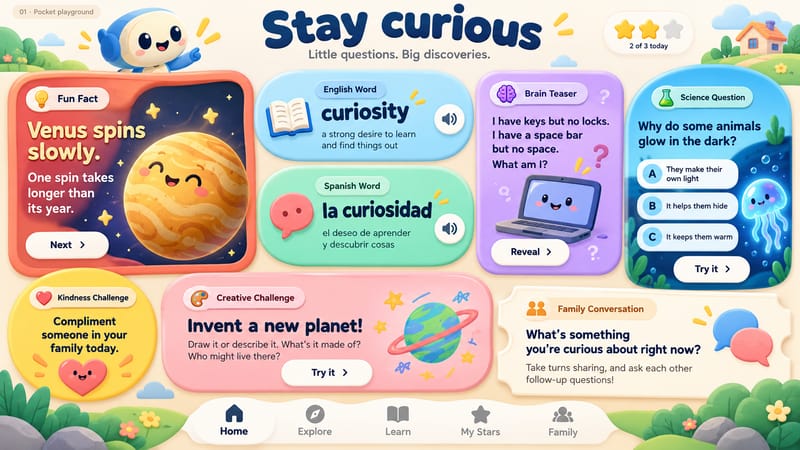
Warm ivory, navy lettering, coral/blue/mint/lavender panels, language capsules, an arch-shaped science card and a ticket-shaped conversation area.
02 · Curiosity Club — original ImageGen concept
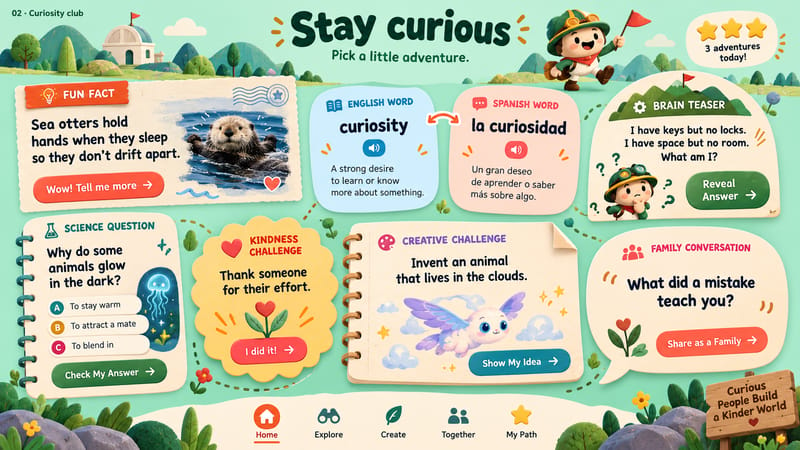
An explorer's paper board: postcards, notebooks, badges, a dotted trail and speech bubbles.
03 · Star Station — original ImageGen concept
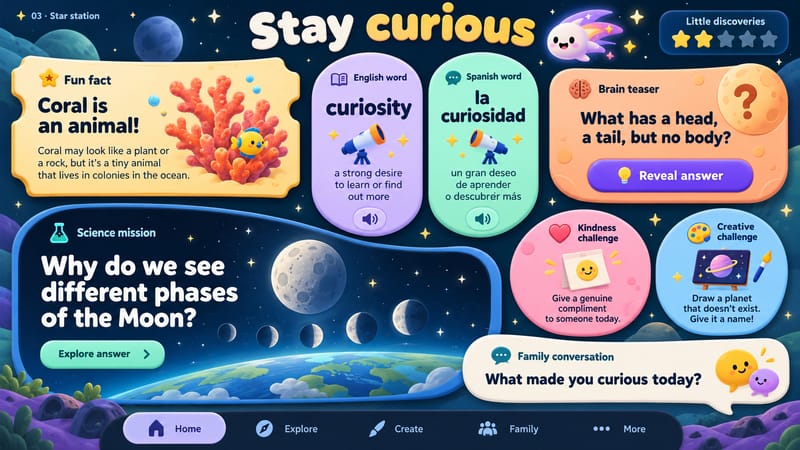
A dark space console: a large science mission, linked language panels, ticket-like fact and circular challenges.
These descriptions summarize the images and prompts. The owner's recorded choice was Pocket Playground; the record does not contain a scored ranking or a detailed rejection of the other two concepts.
5. Revise the chosen concept
The owner liked Pocket Playground but requested three changes: remove the star system, replace the mascot with an illustration of the family's dog, and remove Creative Challenge.
The edit used the selected concept and two dog reference photographs. The saved instruction limited the references to the dog's identity and excluded the people and photograph backgrounds. This was different from the earlier dashboard previews, which used generated scenic photos.
The revision retained the palette and varied silhouettes, removed the rewards capsule and creativity panel, expanded kindness and conversation, and introduced the brown-and-cream dog.
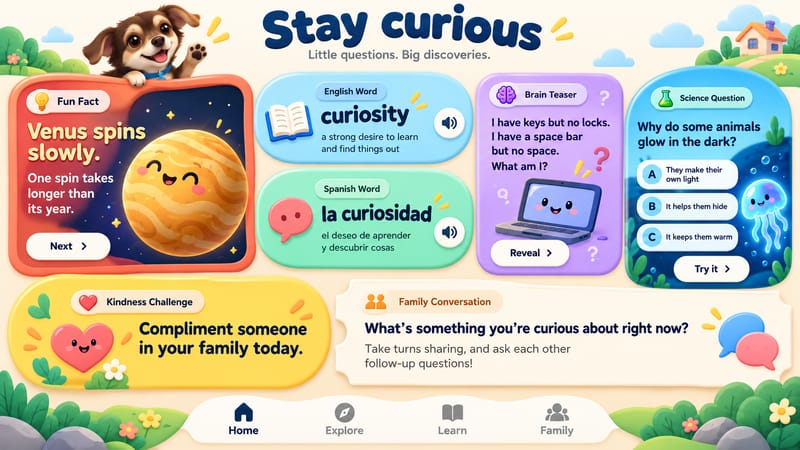
This is still a concept image. It contains proposal details such as Next, audio buttons, decorative stars inside an illustration, and invented bottom navigation. Those details were not treated as implemented features or an exact interaction specification.
6. Generate assets, then build native UI
After selection, ImageGen produced five separate implementation assets:
- Asset: Dog · Output: Transparent PNG · Native role: Header mascot, without people or photo background
- Asset: Garden · Output: Opaque landscape background · Native role: Quiet cream canvas, decoration near the edges
- Asset: Planet · Output: Transparent PNG · Native role: Fact illustration
- Asset: Lilac laptop · Output: Transparent PNG · Native role: Puzzle illustration
- Asset: Science flask · Output: Transparent PNG · Native role: Science illustration
The assets are bundled in the Android companion's drawable-nodpi resources with the pocket_ prefix. Native code renders the actual text, card shapes, lesson dialogs, answer states and touch behavior. The app does not display the whole mockup as one flattened interactive screen.
A generated text label cannot change its date, reflow a long definition or preserve an alarm. The native components handle those behaviors; the assets supply the illustration style.
The prompt archive includes style/layout prompts, Discover alternatives, the selected-concept edit, and asset instructions. Children's names are replaced in public layout prompts; local reference paths are omitted.
7. Review the implementation
The owner next requested complete standalone daily pieces, deeper explanations, large legible type, and no daily Next behavior or “tap to…” guidance on Discover. Explore, opening cards and answer reveals remained; manually advancing to tomorrow's lesson did not.
Actual screenshots and flows were collected in a review board. Six recorded notes led to these changes:
- Feedback: Make the dog much larger · Implemented direction: Enlarged header mascot
- Feedback: English should be an inset pill · Implemented direction: Short English label in a consistent pill
- Feedback: Español should match · Implemented direction: Matching inset language pill
- Feedback: No I tried it button · Implemented direction: Removed the kindness completion control
- Feedback: The kindness prompt should be the largest text · Implemented direction: Increased its visual priority
- Feedback: Kindness copy should concern kindness · Implemented direction: Replaced curiosity-oriented encouragement
Actual native Portal screen
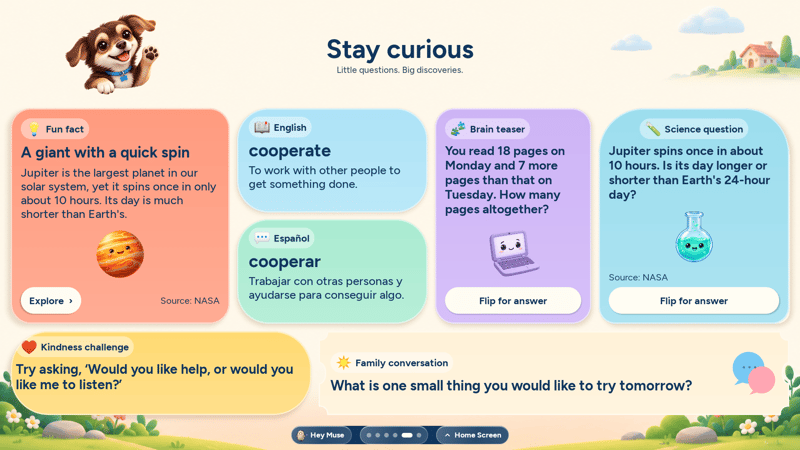
This is a device screenshot. Its daily sample content differs from the generated previews because it comes from the approved content library.
Actual portrait lesson
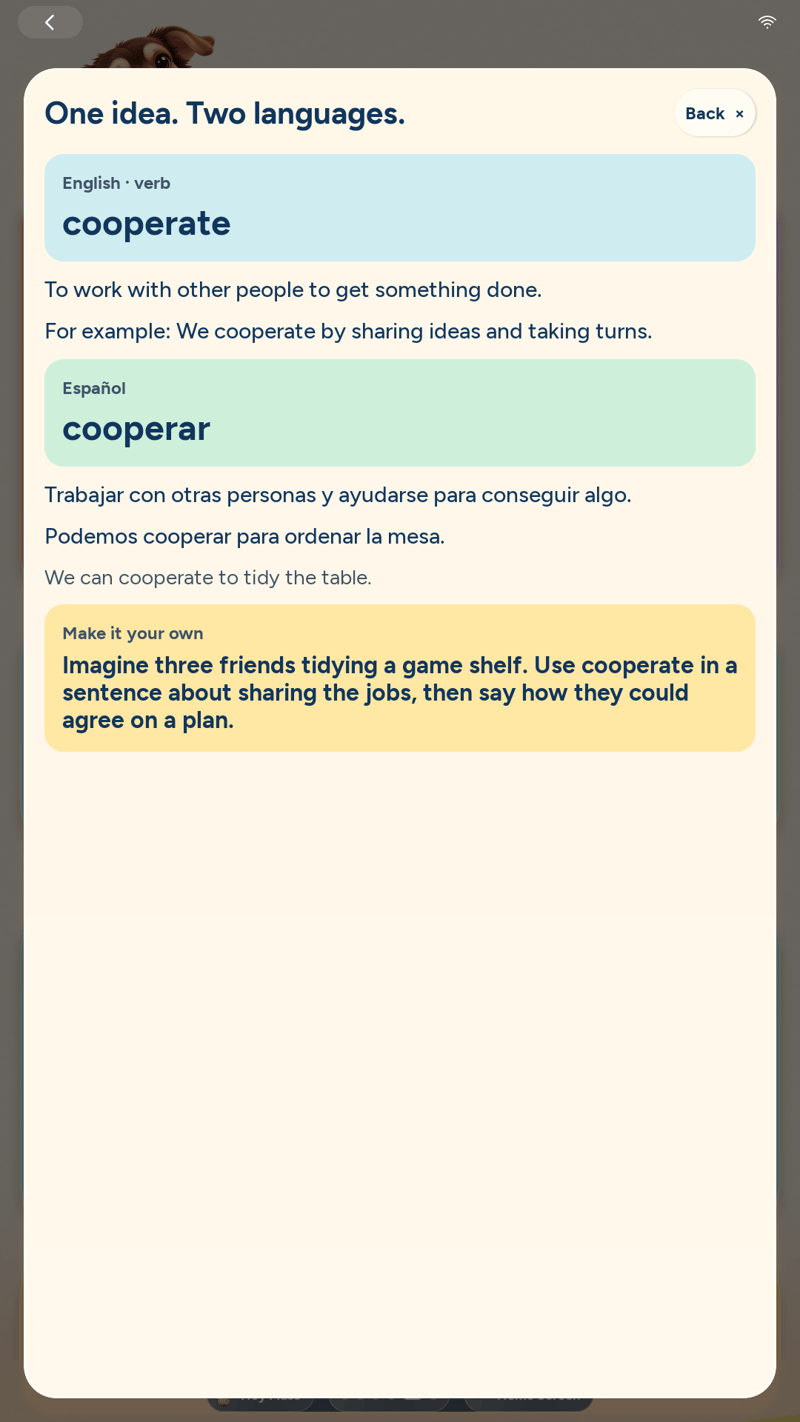
Landscape and a temporary 1080×1920 portrait viewport were checked on the actual Portal, then the display override was removed. This is not a claim that the hardware was physically pivoted.
Hardware verification also covered full fact lessons, lower-board scrolling, lesson deferral during updates, rollback, cached offline boot and a local alarm. A screenshot proves rendering; those behaviors required separate checks.
8. Repeat the workflow
- Write the real inventory, viewing distance, viewport and required behaviors.
- Hold content and geometry mostly constant while comparing a few styles.
- Compare layouts with the same inventory. Preserve every prompt and label every output.
- Ask for an explicit choice. Treat later requests as refinements rather than inventing a preference model.
- Edit the chosen concept with a short list of bounded changes.
- Generate separate reusable artwork, with transparency where needed and quiet space behind text.
- Build readable native text and controls. Specify navigation and state instead of inheriting every invented control.
- Review complete flows, long content and both orientations using device captures and interaction checks.
- Send supported content/theme/asset changes through drafts, approval, validation, signing and atomic activation.
A reusable concept prompt can start like this:
Reusable concept prompt
Use case: UI mockup. Create one flat 16:9 smart-display screen. Keep exactly the listed widgets and make every card visible. Use large readable type, generous gutters and real concise sample content. Use illustrative data and original characters, with no device bezel or room. For this variation, change only [palette / surface / hierarchy / geometry]. Do not invent extra widgets or controls.
This is a suggested structure derived from the process, not an exact historical prompt. The archive provides actual prompt text and identifies privacy substitutions.
ImageGen was used for design and asset production. It is not required at runtime, does not automatically author tomorrow's lessons, and is not an approval system. Daily rotation uses approved cached content. New generated lessons or artwork should enter a draft and be reviewed before publication.
Evidence and privacy
The evidence comprises two four-image dashboard prompt sets, three Discover concepts, the selected dog edit, five asset prompts, owner selections, review annotations, and device captures. The first-round style and Discover images are copies of saved originals, not newly generated historical substitutes.
The public guide uses diagrams for the second dashboard comparison. Original family photographs, children's activity details, tokens, device identifiers, pairing data and backups remain outside GitHub. The local illustrated edition can show the original name-bearing comparison images. Complete chat transcripts and private device dumps are not included.
Download and related guides
The story · Getting started · Design history · Saved prompts