How I turned our Facebook Portal into a family dashboard for weather, train arrivals, photos, and after-school activities.
Every morning, my coffee routine gets interrupted and I'm asked to be a weather app and the train schedule for everyone in the house. What’s the weather? Do I need a jacket? When’s the next train? So when I saw people on X hacking their old Facebook Portals to run Muse, I knew exactly what I would try.
Giving the hardware another life
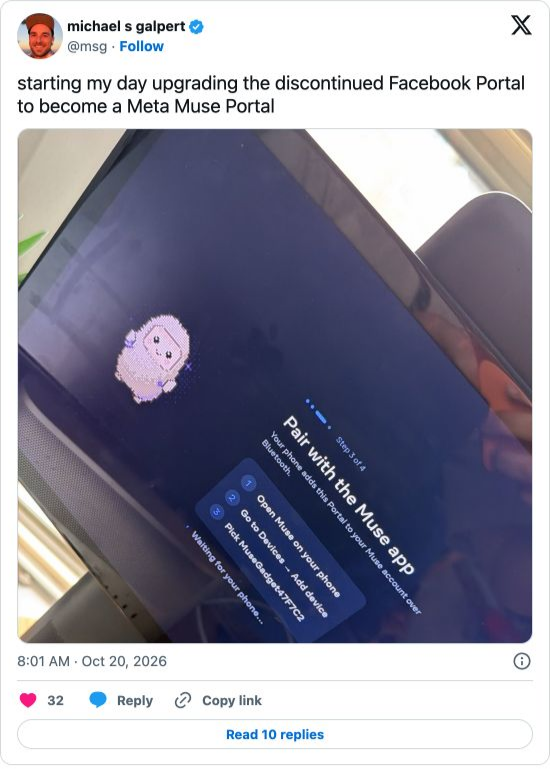
First off, I would like to thank whoever got Meta to agree to open up the Portal for people to build their own apps after it discontinued the product. In its June 4, 2026 post, Build Apps for Your Portal with AI, they enabled Android Debug Bridge (ADB) in the device settings and install apps from a computer. It also made its AI developer tooling work with Portal.
I always loved the hardware that was built into the Portal that became a defunct picture frame. I ended up taking it out of the living room because my kids figured out how to watch youtube on it..
Starting with a working repo
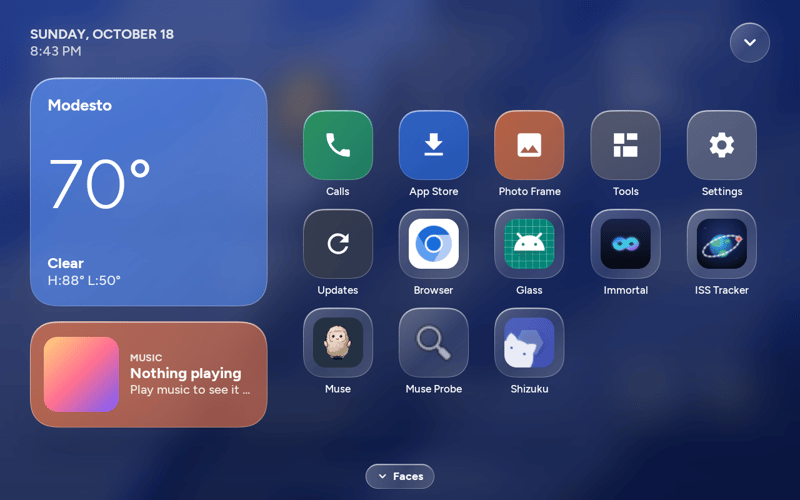
The starting point was Immortal Glass, a fork of Starbright Lab's Immortal. Immortal gives discontinued Meta Portals a custom launcher, a photo-frame screensaver, and an app store. The Glass fork adds its own home screen and a set of swipeable faces.
Before my customization: the Glass repo's home-screen example. Screenshot from the upstream repository .
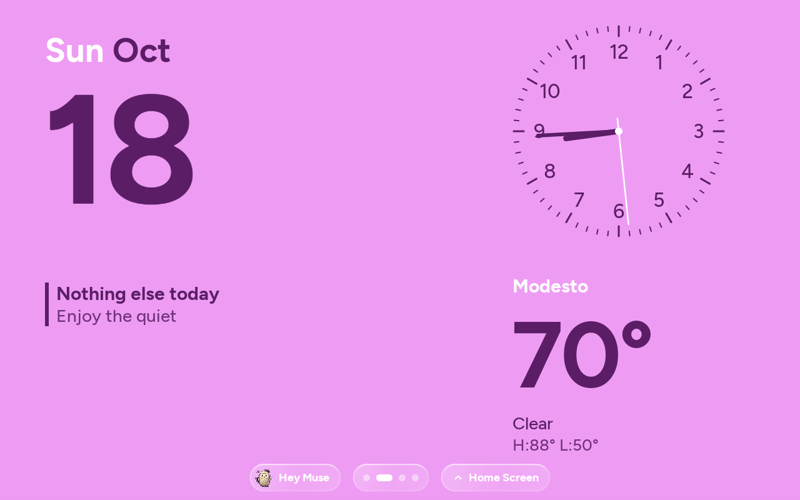
The repo also had faces like this clock-and-weather layout. These are upstream examples, not captures of my Portal before installation.
That gave us a working Android app to change. The launcher, photo frame, and existing faces were already there. I could focus on what I wanted our family to see when we looked at the screen.
My first requests were fairly specific: San Francisco and Cupertino weather, plus the inbound J train toward Embarcadero. Then came photos, after-school activities, an alarm, and access to Muse. The dashboard grew into eight areas.
Using images to decide what to build
ImageGen helped me work out what I wanted it to look like. I could look at several versions, pick one, and ask for specific changes before we went further with the implementation.
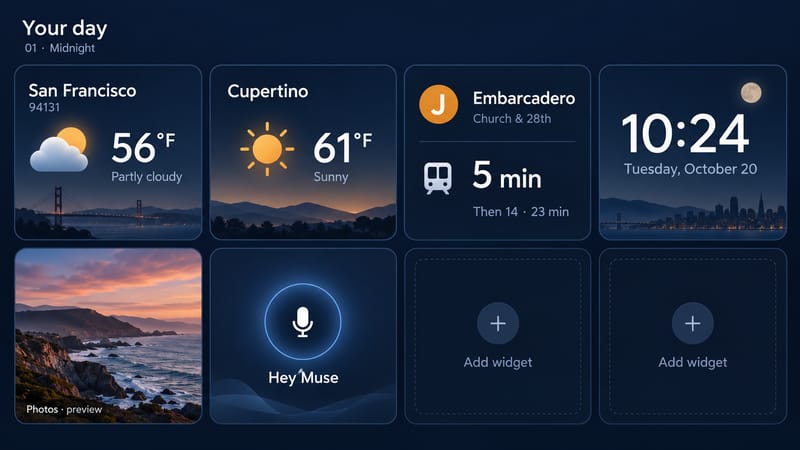
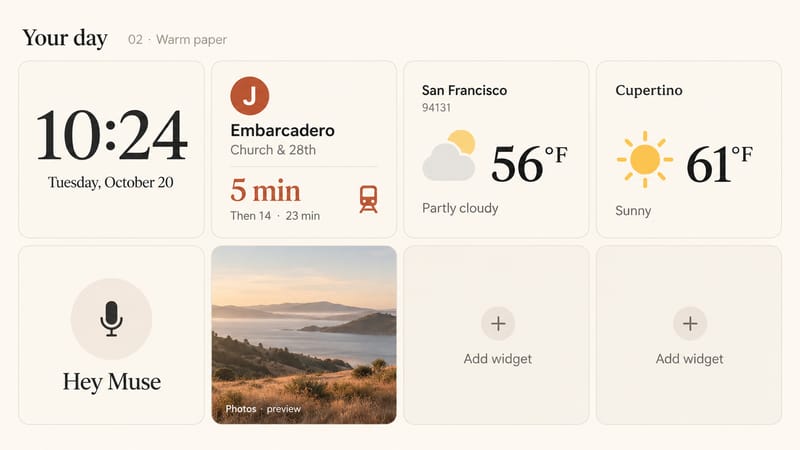
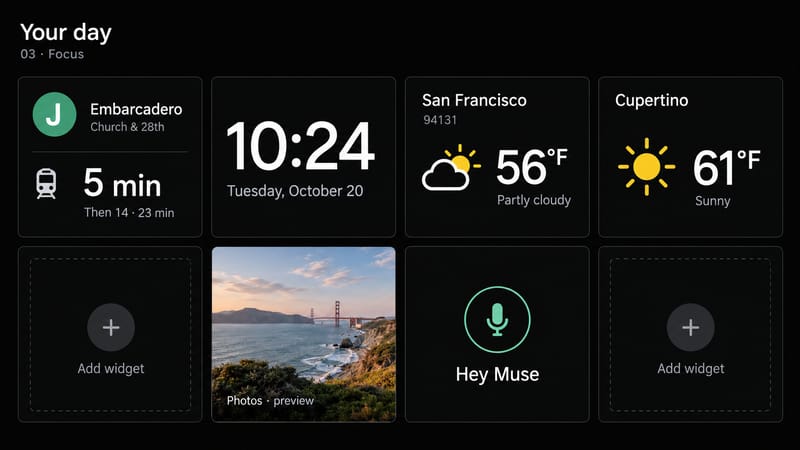
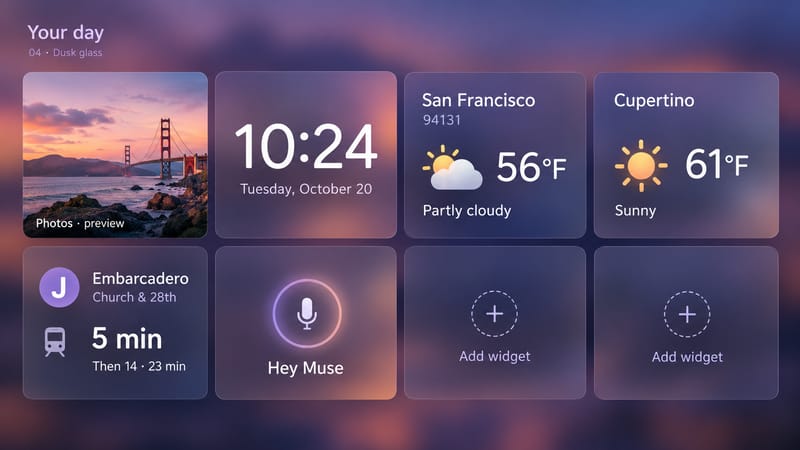
I asked for four visual directions with the same basic widget grid. One was dark blue, another used warm paper colors, a third was almost black, and the fourth had a purple glass treatment.
The first four ImageGen outputs. Temperatures, arrival times and scenic photos were illustrative.
The first concepts still had two "Add widget" placeholders and a microphone icon for Muse. I wanted to fill those spaces with the kids' after-school activities and an alarm, and show Muse's cream-colored pixel character in its card. That gave us eight actual areas to work with: two weather cards, train arrivals, a clock, photos, activities, an alarm, and Muse.
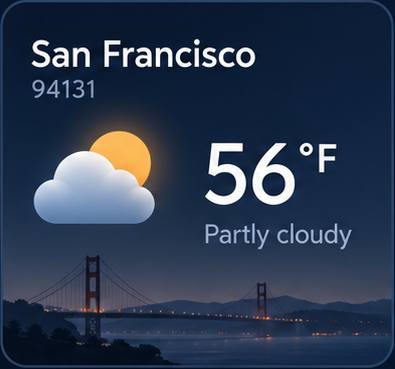
That's the beauty of working with coding agents these days: if you don't like the output, you can say what isn't working and ask for a change. I didn't like the first weather widget because the current temperature wasn't telling me enough about the day's highs and lows. I asked for a line chart so I could see how the temperature would rise and fall through the day.
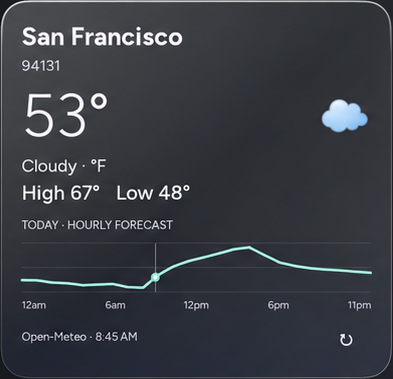
We added an hourly temperature line chart to both San Francisco and Cupertino, with time labels beneath it and the day's high and low shown as numbers above it. That made it easier to understand both the temperature range and when it would be warmer or cooler. Each card also showed the source and update time. I could look at the revision on the Portal and keep giving feedback as we went.
Before: the first ImageGen concept showed the current temperature and conditions, with a scenic background. After: the implemented card adds High 67° / Low 48° and an hourly line chart. The curve shows when the day warms up and cools down.
Close-ups of the same city's card: an early design concept and the later native implementation, shown from its labeled privacy-edited capture. Sample readings differ between the images.
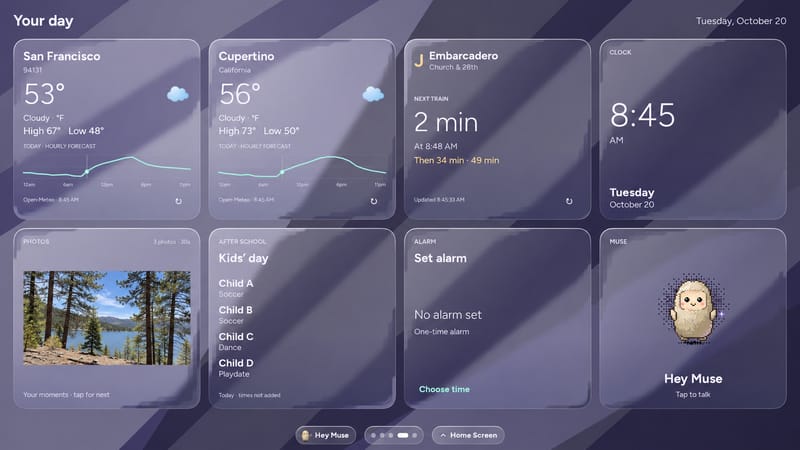
For the cards themselves, I asked for liquid glass. The first implementation put translucent panels over a purple background with broad diagonal bands. Bright rims and strong reflections ran across the cards. You can see that version below: the background pattern shows through the weather, clock, and activity cards, and the reflections cut across their contents.
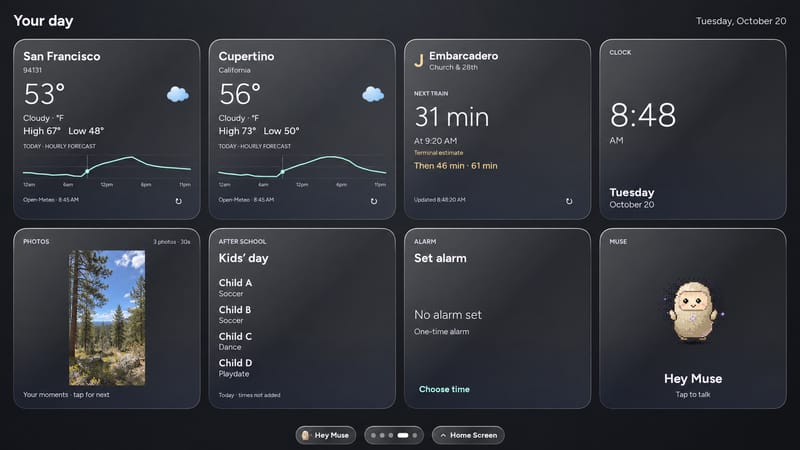
Once I saw it running on the Portal, I didn't like how the glass worked with that background. We removed the purple diagonals, changed the background to charcoal, and softened the highlights. The cards kept rounded edges and a little depth, but the large reflective streaks were gone. The comparison shows that specific revision, with the same eight-card grid and the weather curves already in place.
Before: the first liquid-glass implementation on the Portal. Purple diagonal bands and bright reflections show through the cards. After: the charcoal revision, retaining the weather details and Muse character while removing the purple background and strong reflections.
Both images are labeled privacy edits made with ImageGen from the saved October 20 device captures, with the children's names anonymized and personal photos replaced. They may differ subtly from the raw captures, which stay local. This was an intermediate layout; the old "Hey Muse" label was removed later.
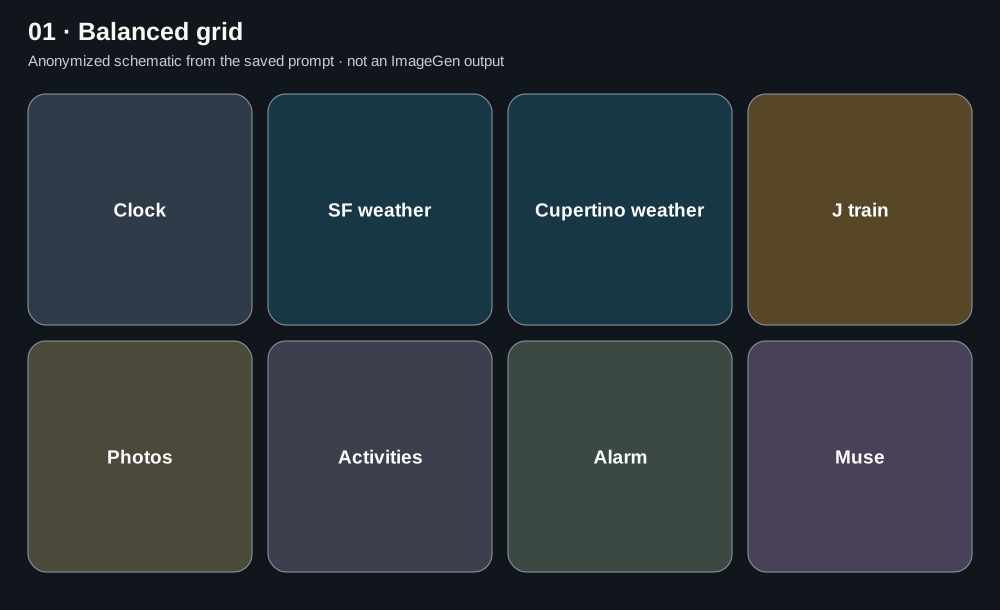
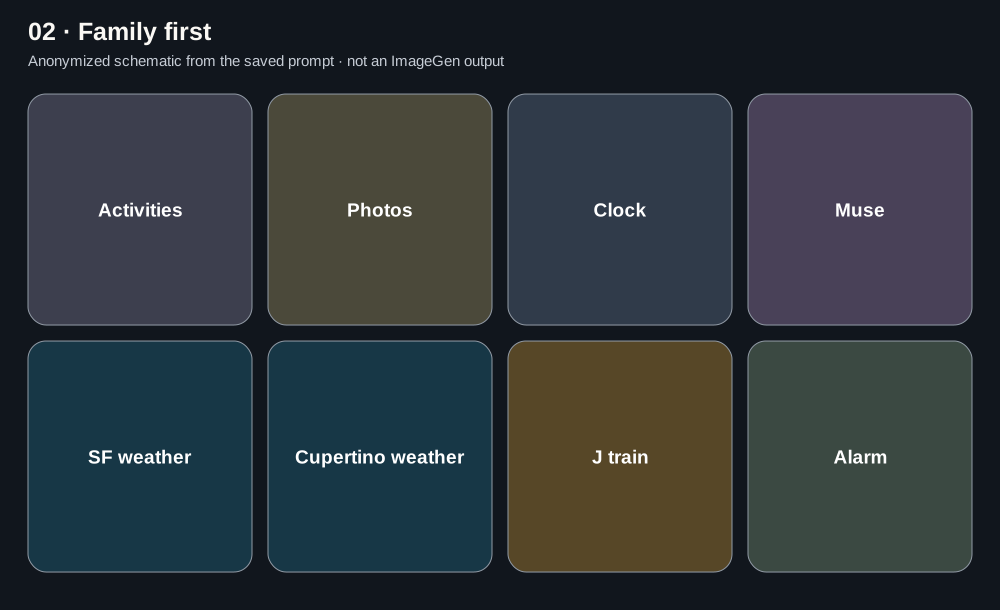
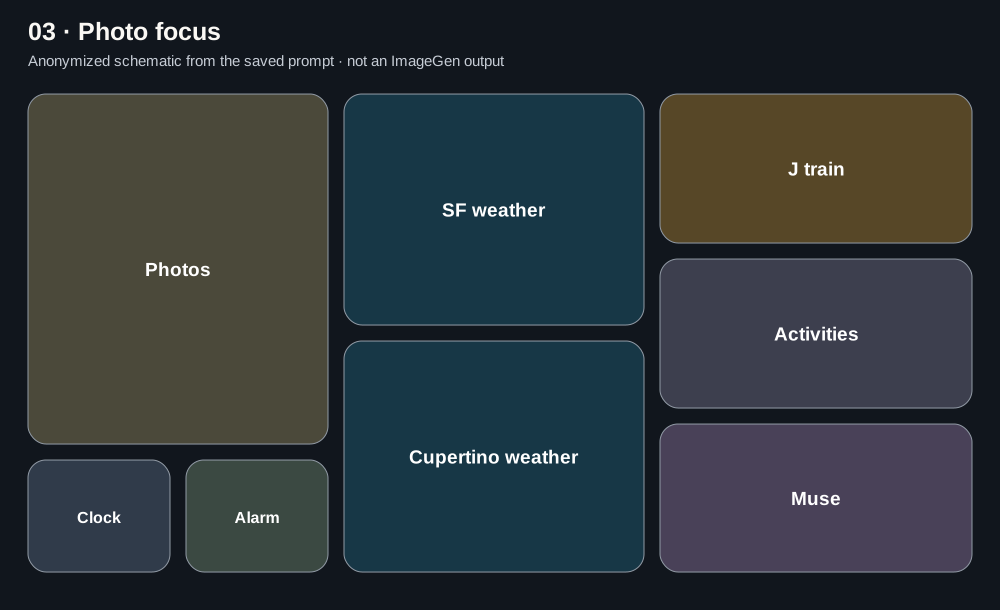
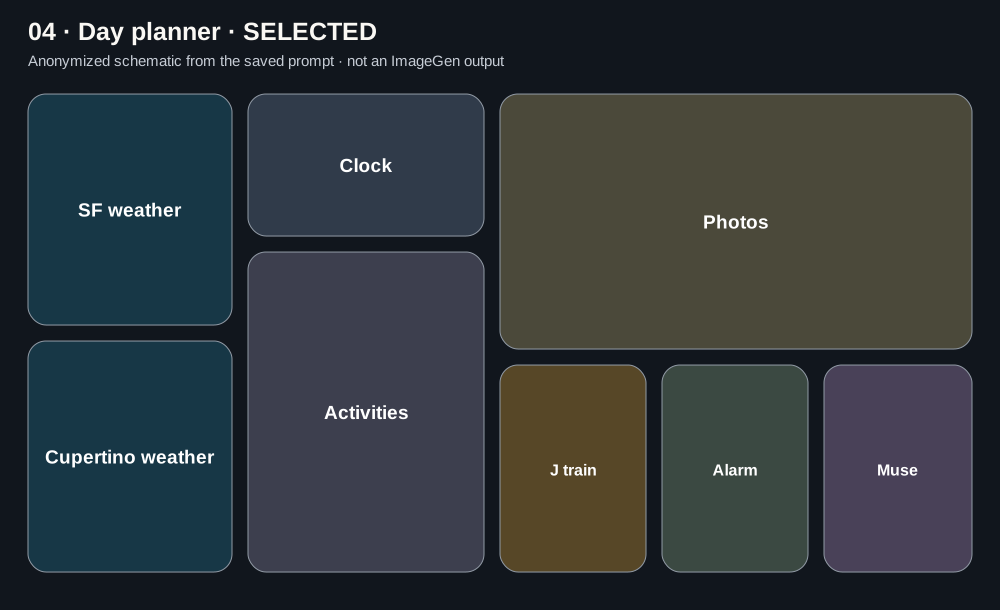
Then I asked for four different arrangements of the widgets. This time the question was how much space each thing should get: equal cards, family information first, a larger photo, or a layout organized around the day.
01 · Balanced grid 02 · Family first 03 · Photo focus 04 · Day planner, selected
Diagrams redrawn from the saved prompts for the second ImageGen round. The original images contain the children's names, so this version shows the arrangements without those details.
I picked Day planner, the fourth option in that second round. Then I wanted a quote across the top, vertical photos, and a larger train arrival time with a simple J train label. We later combined the clock and alarm to make room for Sonos.
Where Your day ended up
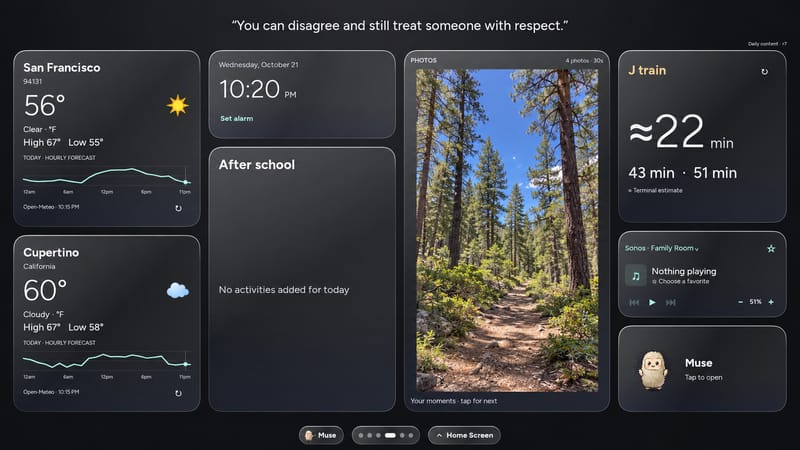
The finished native layout, shown through an ImageGen privacy edit of the actual device capture. A generated woodland photo replaces the personal image; the unmodified capture stays local. The ≈ in the train card marks a terminal estimate.
The finished screen has the two weather cards on the left, the clock and alarm above after-school activities, and a full-height photo beside them. The J train gets a large arrival number on the right, with Sonos and Muse below it. A quote runs across the top.
The first concepts showed fairly simple weather cards. I asked for the day's high and low and an hourly temperature curve as well as the current temperature and conditions. We kept San Francisco and Cupertino stacked so both are visible together. Each card also shows its source and update time, or a cached-data message when the reading is old.
The photo changed more substantially. The selected concept had a wide photo above a row of smaller widgets. I wanted vertical photos, so we gave them a tall column of their own and limited the rotation to portrait images. The app respects the photo's camera orientation and fits the whole image inside the tile instead of cropping it to fill the card. In this setup it advances every 30 seconds, and I can tap the photo to see the next one.
Those adjustments gave the dashboard its final proportions. The weather and train information stayed readable, and the photos had enough room to be a main part of the screen.
A second screen for the kids
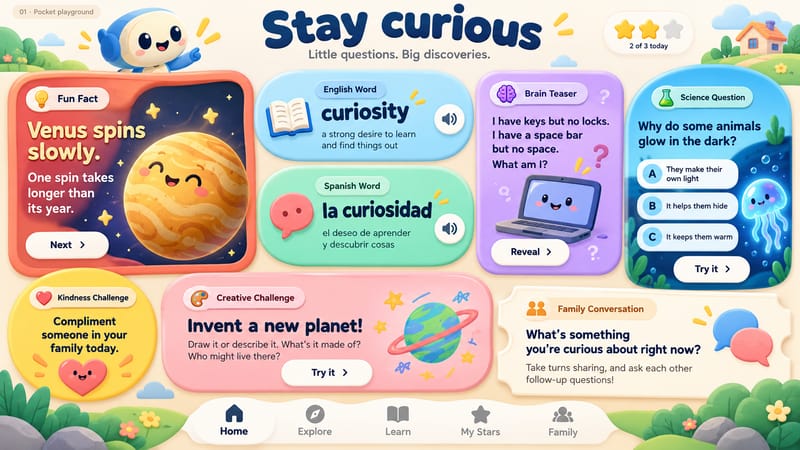
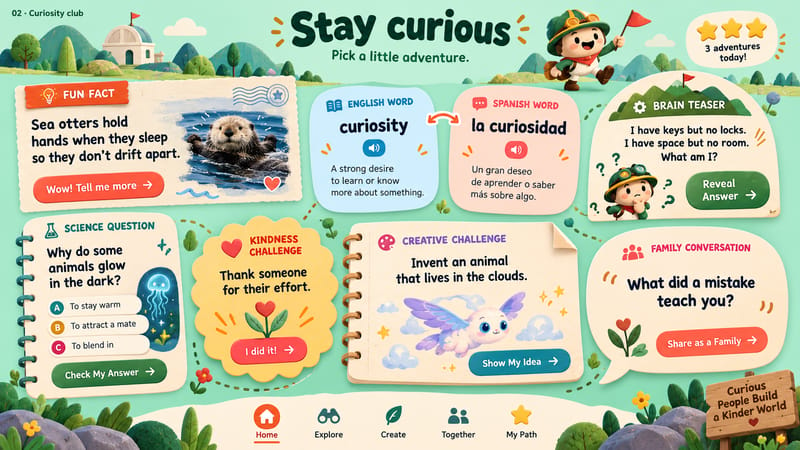
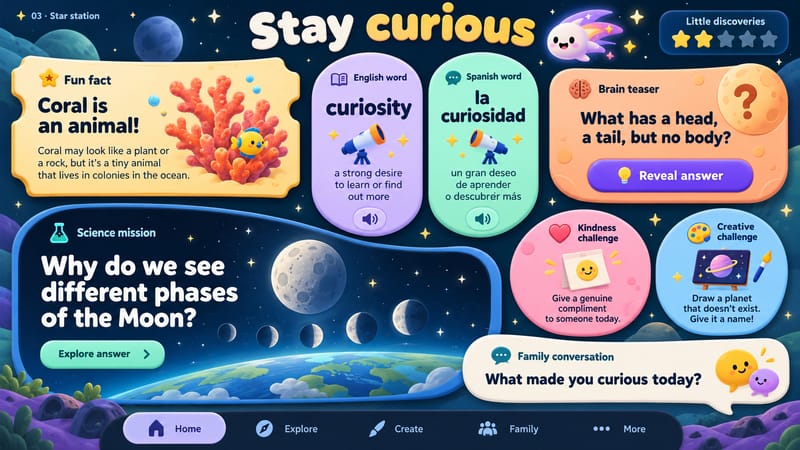
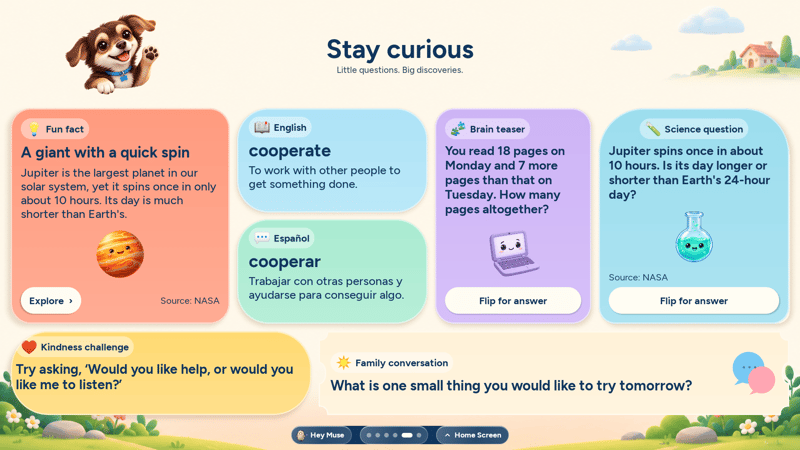
I also wanted a learning screen for ages 9–12, with a fact, English and Spanish words, a puzzle, science, kindness, and something to talk about as a family. I wanted it available whenever the kids swiped to it. We called it Discover.
For this screen, I asked for the playfulness and polish of a Nintendo interface, with original characters and different card shapes. ImageGen produced three directions.
01 · Pocket Playground 02 · Curiosity Club 03 · Star Station
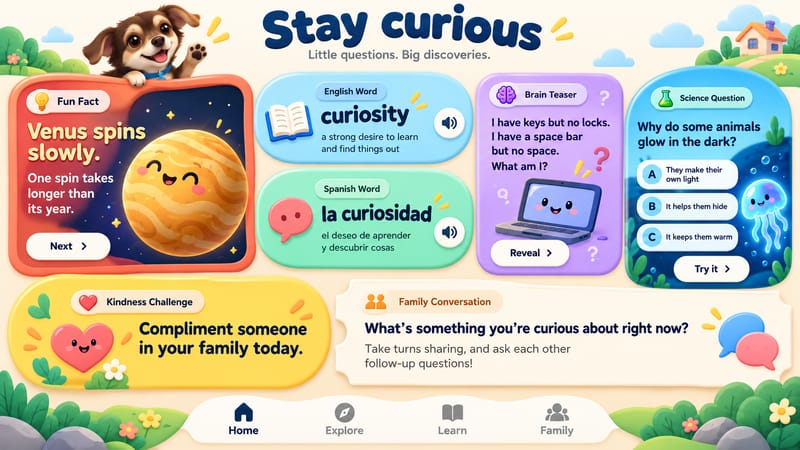
I chose Pocket Playground. I liked the direction, but wanted to remove the star rewards and creative challenge, and replace the mascot with our dog. We used two dog photos as references for that revision.
The revised concept. This is still an ImageGen mockup; details such as Next and the bottom navigation changed during implementation.
This got the design to a place I was happy with. We then generated the dog, garden background, planet, laptop, and science flask as separate illustrations to use in the app.
Taking it from a mockup to the Portal
Once I had a direction, I worked with Codex on the native Android implementation. The app draws the cards, text, and controls, and uses the generated artwork inside them. That let us adjust the type, open lessons, reveal answers, and make the content change by date.
There were more changes once I could see and use it. I wanted the dog larger, English and Español in matching inset pills, and the kindness prompt to be the most prominent text in its card. We removed the "I tried it" button. I also wanted complete daily pieces with deeper explanations and large type, so the kids could open something and explore it without a daily Next sequence.
After: the native Discover screen on the actual Portal. The text comes from the approved daily content library.
We checked the lesson flows and long text on the device, including a portrait viewport. Seeing the screens at their actual size led to changes that the original mockups couldn't settle.
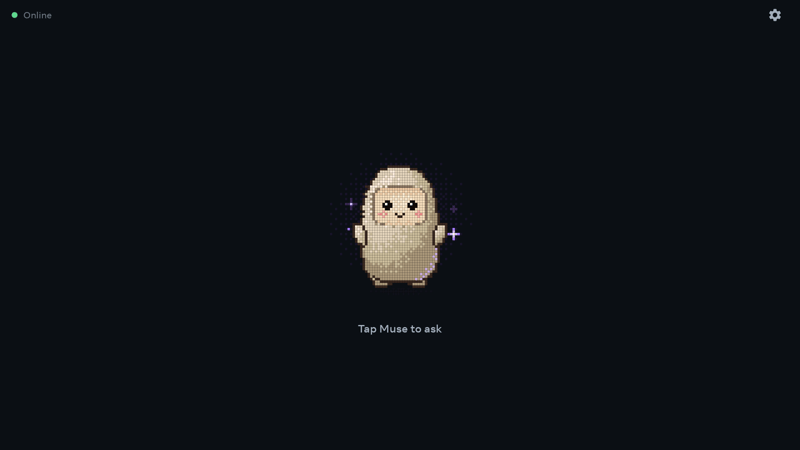
I also dropped the "Hey Muse" wake word. It triggered too often when I wasn't trying to talk to it, and I found that annoying. I wanted to choose when to use Muse, so I switched to opening it with a tap and starting the conversation myself. Earlier screenshots and mockups still show the old "Hey Muse" label.
Muse after switching off the wake word. Opening the app leaves it waiting for an explicit tap to start a question.
I wanted to be able to update the Portal app every day. That's why we built a separate local server on the Mac, with a browser editor for lessons, quotes, dated activities, and photos. I can edit and publish that content there, and the Portal gets the updates over home Wi-Fi. It keeps a local copy of the approved content, so it can still show it when the server or Wi-Fi is unavailable. We tested cached content after an offline reboot and checked that a local alarm still rang.
Everyday content changes now go through that editor. New native features still need an Android build. Weather and transit depend on their network services, and unattended APK installation remains a limitation on the first-generation Portal we tested.
Starting with the repo meant I could spend time deciding what belonged on our screen. The image comparisons helped me make those decisions before committing to a layout. Once I could see a version I liked, we had a clear place to start building and testing it.
I'd been planning to get an Apple HomeView for its widgets. After doing this, I've lost interest. I doubt it will let me customize things as much as this Portal does. Here, I can change the size of a card, the information inside it, what happens when I tap it, and how the whole screen is arranged. That freedom turned out to be a big part of what I wanted.
What would you put on yours?
A few widgets I may give a try and encourage people to try building:
What's for dinner: tonight's meal, ingredients you still need, and a tap to open the recipe or add something to a shopping list.
The morning checklist: what each person needs to take today, such as a library book, sports kit, or instrument, with boxes they can check themselves.
A household handoff: who's doing pickup, when a visitor is arriving, or a note for whoever gets home first.
An outdoor check: air quality, rain, UV, or pollen alongside the forecast, depending on what your household checks before going out.
A home status card: room temperatures, energy use, or a light control connected to a home automation system you already use.
Something to look forward to: a countdown to a trip, a rotating family memory, or the time where a grandparent lives with a reminder to call.
These are ideas for additional widgets, rather than features already included in this project. Some could start with text and dates you enter yourself; others would need a connection to a data service or another device. Pick one repeated question, decide what the screen should show and what a tap should do, and build that card first.
The complete getting-started guide covers the tools, Android build and signing, pairing, first Wi-Fi update, daily editing, and backups. This is a source build, tested on a first-generation Portal+ running Android 9; there isn't a prebuilt custom APK to download. The weather locations and train stop currently live in the Android source, so those are things to change for your own household.
If you want to follow the design process, the full design archive has the comparisons and implementation notes, and the prompt archive has the actual saved prompts.